Help videos
New here? Watch these before you start.
Short narrated recordings of the app, one task each, one to two minutes long. Pick a category or search for what you need. Every video has its own link, so support can send you exactly the one that answers your question.
 1:01
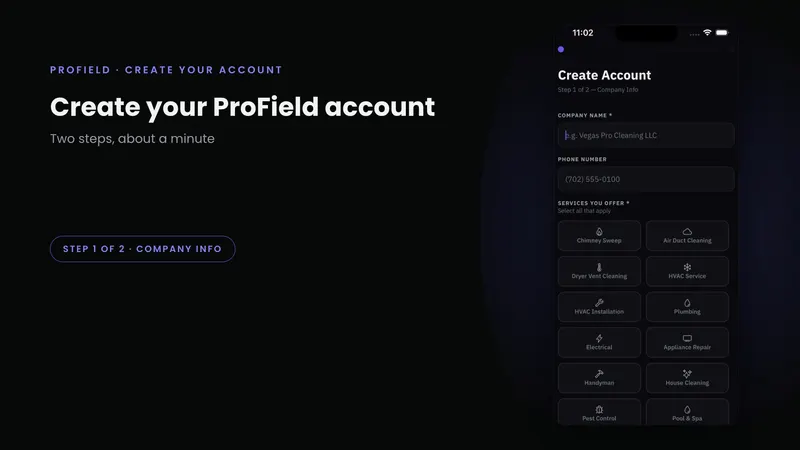
1:01Sign up from the app in two steps: your company name, phone and the trades you work in, then your own name, email and password. Your 14-day trial starts right away. No credit card.
 1:45
1:45Your first sign-in and the five onboarding screens: company email, business address, your default location, your logo, and skipping card payments for now. Everything here can be changed later.
 1:27
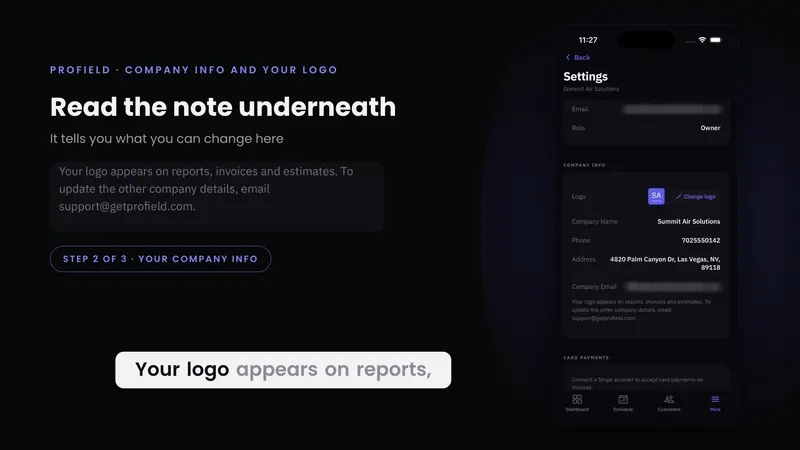
1:27Where the details that print on every report, invoice and estimate live, and how to change your logo from the photo library.
Company name, phone and address are read-only in the phone app; only the logo is editable there.
 1:23
1:23Add your Zelle name and QR code and your Venmo handle under Payment Methods. They print on the invoices you send, so customers can pay you directly with no fee.
1:57Load the default catalogue for your trades, add a custom service, edit a price, and remove a service you do not offer. Your pricebook feeds estimates, invoices and the booking page.
1:58Create a template for any trade: sections, Pass/Fail/NA items, number and photo blocks. This is how a service without a built-in checklist gets one, and every report from it carries your branding.
1:55Set your booking rules: buffer days, how far ahead customers can book, and which services they can pick. Then copy the shareable link to put on your website or text to a customer.
1:18Add a team member with their name, email, password and phone, and choose the Admin or Technician role. A technician can sign in on their own phone right away and sees only their assigned jobs.
1:06Add another shop or branch under the same account and make it the default that new jobs and invoices are assigned to.
1:03Switch between two businesses from the dashboard header. Each keeps its own customers, jobs, locations and settings; nothing mixes.
1:08Add a homeowner: name, phone, email and billing address, through to the finished customer record.
1:09The same form switched to Commercial: the company name becomes the account and the person becomes the contact. For property managers, HOAs and facilities accounts.
1:19The customer record: contact shortcuts, properties, adding a second service address so the right address goes on the job, and the service history.
1:20The core daily workflow. Location, date and time, the customer and which of their addresses, the services, the technician, access notes, then the review screen and Confirm & Schedule.
1:04The month strip, the day view, the status legend, moving between weeks, Today, and the list view.
0:58The technician's side: Job Details, On My Way and Start Job, each timestamped so the office can see where the day stands.
1:15Start an inspection from the job, work through an 18-item checklist with pass, fail and notes, and save a draft to finish later.
1:20Add before and after photos, mark them up, and generate the report. The AI writes a Service Completion Summary naming the property, the customer and the work done.
This episode stops at the written report; the signature, PDF and Send steps are not shown.